GLADPIN / FREE ONLINE
Create a QR code for your Google review link.
A Google review QR code makes your review destination easier to reach. You can use Google's own QR for a direct link, or a GladPin QR that gives visitors a choice of thanks, private feedback and your Google review link.
1. Get the review link for the right location
Open the Google Business Profile you manage. Google's current instructions use Read reviews, then Get more reviews, where you can copy the review link. Check the business name and location before copying. Google also offers its own downloadable QR code on desktop if you only need a direct Google destination. The official instructions are linked below because Google's interface can change.
2. Create or open your GladPin location
Register for a free GladPin owner account and verify your email. In the dashboard, add a location or select the one you want to edit. Enter the location name, description and optional address. Each branch needs its own page so customers reach the correct review destination.
3. Save the Google review URL
Paste the copied URL into the Google review URL field and save. GladPin accepts supported HTTPS Google destinations, including g.page links, Google Maps links and search.google.com/local/writereview links with a place ID. If the form rejects a URL, copy the original review link again rather than using an unrelated URL shortener. Open the public page and check where its Google action leads.
4. Download and test your QR
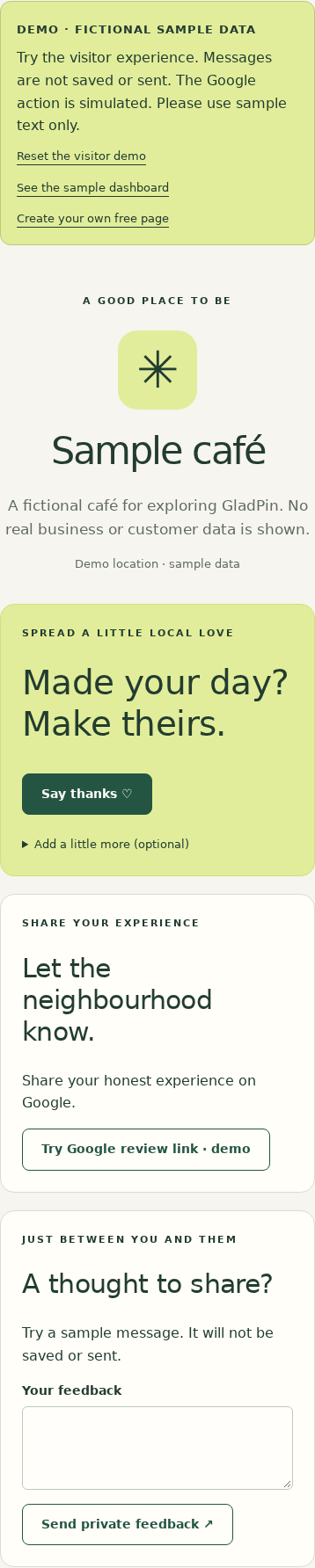
Choose Download QR for free · PNG for ordinary printing or SVG for scalable artwork. The GladPin QR points to your location's GladPin page. That page offers the configured Google review action alongside thanks and private feedback. Renaming the location or editing its Google URL keeps the same GladPin QR destination. Test a final printed copy on a phone and verify the destination before displaying it.
5. Invite honest experiences
Use a short prompt such as ‘Share your experience’. Put the QR where customers can scan comfortably, with clear space around the code and a readable label. Keep the Google review choice available to every visitor. Do not require a thank-you or positive feedback first, and do not offer a gift or discount for a review. Google requires a Google Account for posting a review; GladPin's own anonymous actions do not require one.
6. Read the right metric
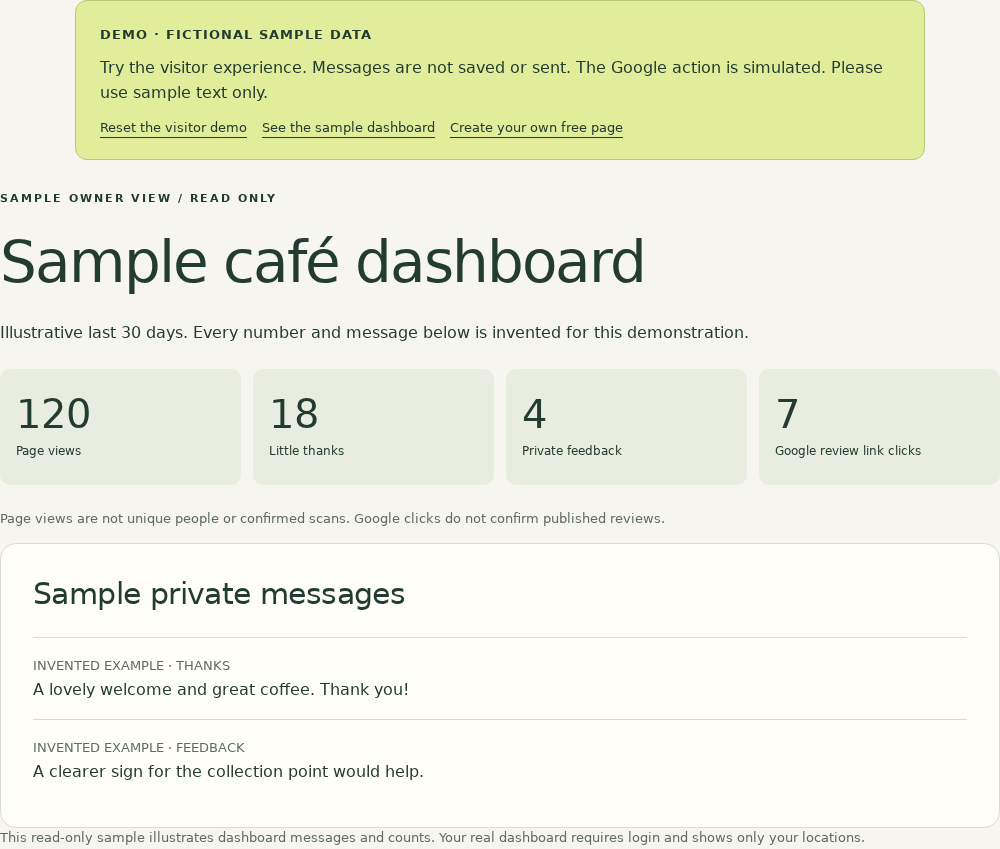
The dashboard counts Google review link clicks. It does not publish, import or verify reviews, so a click is not proof of a new review. Check your Google Business Profile for actual reviews. Keep any printed GladPin QR associated with its original location in your account.
See what opens after a scan.
Real interface screenshots with fictional demo data. No customer records or results are shown.