GLADPIN / FREE ONLINE
Let customers share feedback in their browser.
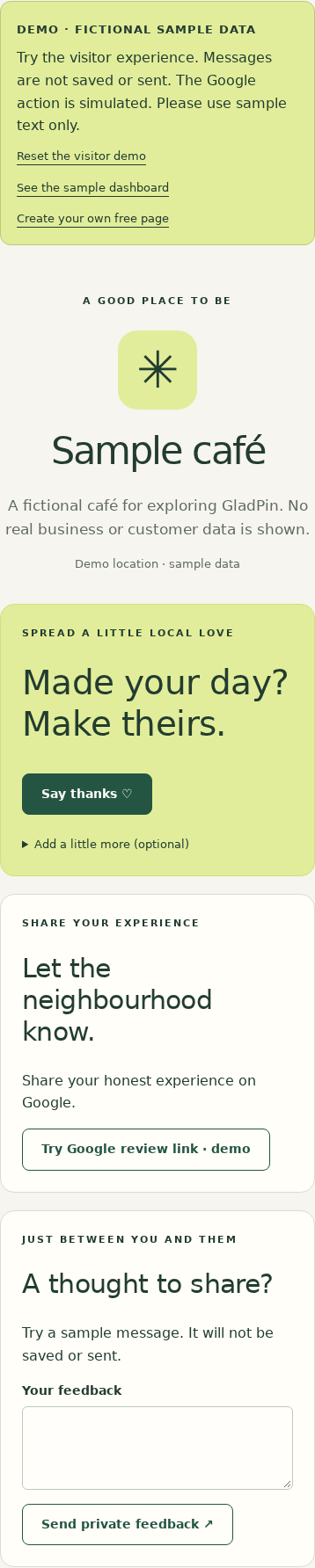
Customers can give useful feedback without installing an app or joining a mailing list. A GladPin QR opens a location page in their browser, where they can send a private message without providing contact details.
1. Give each location a clear destination
Create your free owner account, verify your email and add a location. Use the name customers recognise, a short description and an optional address. If you have several branches, create a separate location for each. That keeps the printed codes, private notes and dashboard counts matched to the right place.
2. Make the invitation specific
Download your location's PNG or SVG QR and place it beside a short invitation such as ‘How was your visit? Share a private thought or say thanks’. Explain that the code opens feedback, so people do not confuse it with payment, booking or a menu. Try a table card, reception sign or exit notice that people can reach without holding up a queue.
3. Test the complete experience
Scan the final printed code on a phone. Check the name and description, then send a short test note and find it in the correct owner dashboard. A real location test creates a real interaction, so use clearly marked test wording and remember it may appear in your counts. To explore without adding any records, use the fictional public demo instead.
4. Explain what private means
The business owner can read thanks notes and feedback in their dashboard; the messages are not published on the public location page. Visitors do not need an account, email address or phone number. Ask them not to include sensitive or unnecessary personal information. Anonymous does not mean you can reply: GladPin does not collect a contact address for a response. Keep a direct business contact channel for requests needing follow-up.
5. Keep private feedback separate from public reviews
If you add a Google review URL, that action is available independently of thanks and feedback. Someone can go straight to Google without first telling you whether they enjoyed the visit. Do not send only happy customers to Google or offer an incentive. GladPin does not transfer a private feedback message into a public Google review.
6. Review messages and choose an action
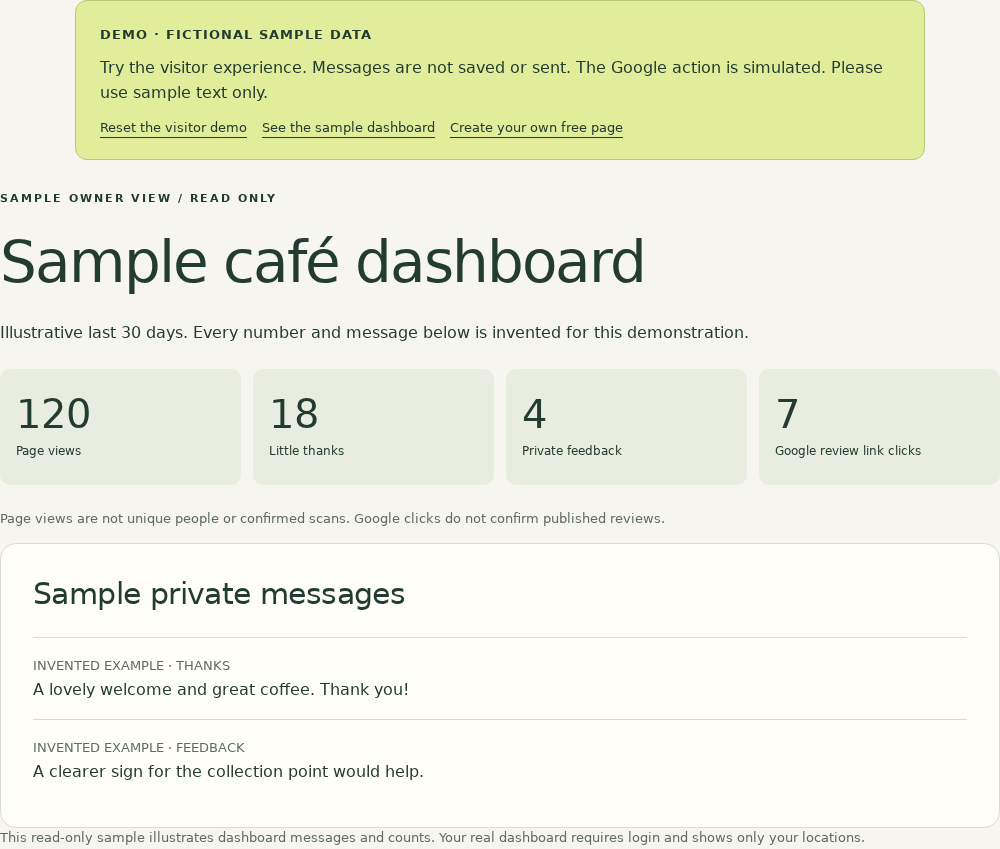
Set a regular time to read the selected location's latest messages. Look for repeated, actionable themes, such as queue times or unclear signage. The dashboard offers rolling 7, 30 and 90-day activity counts and the latest 50 messages per location. These are signals from people who chose to interact, not a representative customer survey. Page views are not unique customers or proven QR scans.
What you need to start
An owner email address, your location details and a way to display your downloaded QR are enough to try the setup. GladPin's online pages, multiple locations, dashboard and QR downloads are free without a subscription or credit card. The privacy notice is still marked as a draft; review its current disclosures before collecting customer messages.
See what opens after a scan.
Real interface screenshots with fictional demo data. No customer records or results are shown.